

Have you ever wondered about mysterious notifications on your iPhone?
Tracking notifications are Apple’s way of keeping you informed about potential unwanted tracking. With rising concerns about privacy,
Apple introduced this feature to protect users.
These alerts help you detect if someone placed an AirTag or other tracking device near you.
Understanding what are tracking notifications on iPhone empowers you to take control of your safety.
This guide explains everything you need to know about iPhone tracking notifications and how to manage them effectively.
Understanding iPhone Tracking Notifications
Tracking notifications on iPhone are safety alerts from Apple’s Find My network.
They notify you when an unknown AirTag or compatible device is moving with you.
Apple designed this feature to prevent stalking and unwanted tracking.
The tracking notification app works automatically on iOS 14.5 and later versions.
You don’t need to download any additional apps.
Your iPhone uses Bluetooth technology to detect nearby tracking devices.
When your iPhone detects a separated AirTag traveling with you, it sends an alert.
This happens even if the AirTag belongs to someone else.
The system is smart enough to ignore devices that belong to people in your Family Sharing group.
Think of it like a digital bodyguard.
Your iPhone constantly monitors for suspicious tracking devices.
It’s Apple’s response to privacy concerns about location tracking technology.

How Tracking Notifications Work on iPhone
The Detection Process
Your iPhone scans for nearby Bluetooth devices continuously.
When it detects an AirTag separated from its owner, the tracking begins.
The device must travel with you for a certain period before triggering an alert.
Here’s what happens behind the scenes:
Real-World Example
Sarah borrowed her friend’s backpack for a weekend trip.
Her friend forgot an AirTag was attached to the bag. After several hours,
Sarah’s iPhone sent a tracking notification.
She found the AirTag, contacted her friend, and confirmed it was safe.
This example shows how the system protects users while avoiding false alarms.
How to Turn On Tracking Notifications on iPhone
Most iPhones have tracking notifications enabled by default.
You should verify your settings are correct.
Follow these simple steps to turn on tracking notifications:
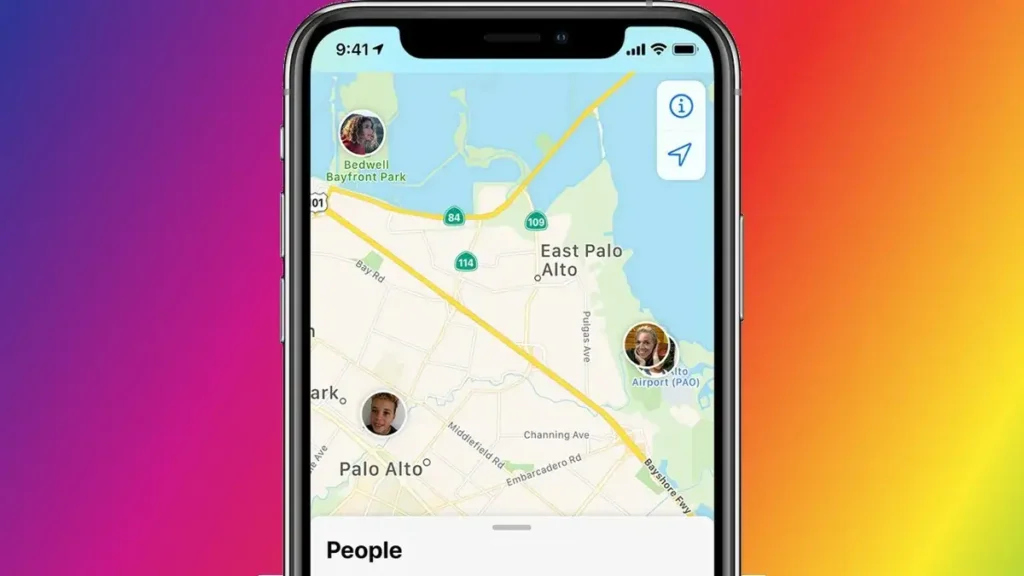
These settings ensure your iPhone can detect tracking devices properly. The Find My network must be active for the feature to work. Without it, you won’t receive tracking notifications even if a device follows you.
How to See and Find Tracking Notifications on iPhone
When you receive a tracking notification, it appears like any other alert.
The notification displays “AirTag Found Moving With You” or a similar message.
You’ll see it on your lock screen and in your Notification Center.
To view tracking notifications:
The notification provides helpful options.
You can play a sound on the AirTag to find it.
This feature is useful when the device is hidden in your belongings. The sound is loud enough to hear in most environments.
How to Remove Tracking Notifications on iPhone
Sometimes you might receive legitimate tracking notifications.
Maybe you borrowed something with an AirTag attached.
Here’s how to remove tracking notifications temporarily:
Important note: Only pause alerts if you’re certain the tracking device is safe.
If you suspect malicious tracking, don’t disable the notifications.
Instead, follow Apple’s safety guidelines and consider contacting local authorities.
How to Turn Off Tracking Notifications on iPhone
Apple doesn’t recommend disabling tracking notifications completely.
You have the option if needed. Turning off these alerts reduces your privacy protection.
Consider this carefully before proceeding.
To disable tracking notifications:
Warning: This disables several Find My features, not just tracking notifications.
You won’t be able to locate your iPhone if it’s lost. You also can’t see your device on the Find My map.
Most users should keep this feature enabled for safety.
What Does Allow Tracking Notifications Mean?
The term “allow tracking notifications on iPhone” refers to permission settings.
It means letting your iPhone alert you about potential tracking devices.
This permission is part of your privacy settings.
When you allow tracking notifications, you’re enabling:
Allowing these notifications doesn’t mean apps can track your location freely.
It’s specifically about detecting physical tracking devices.
This is different from app tracking permissions, which control how apps use your data.
Common Issues and Solutions
Not Receiving Tracking Notifications
If you’re not receiving alerts, check these settings:
False Alerts
Sometimes you might receive tracking notifications for legitimate devices.
This happens with shared family AirTags or borrowed items.
You can temporarily pause these alerts as mentioned earlier.
The system learns over time and reduces false positives.
Privacy and Safety Tips
Tracking notifications are just one part of iPhone security. Here are additional privacy tips:
Apple continuously improves the tracking notification system.
Recent updates have made detection faster and more accurate.
The company works with law enforcement to prevent misuse of tracking technology.
In Short
Understanding what are tracking notifications on iPhone is essential for modern safety.
These alerts protect you from unwanted surveillance using AirTags and similar devices.
Your iPhone automatically monitors for suspicious tracking without requiring extra apps.
Remember these important points:
This tracking notification app helps millions of iPhone users stay safe daily.
It’s a powerful example of how technology can protect privacy.
Take advantage of this free feature to enhance your personal security.
Frequently Asked Questions (FAQs)
Q1: Can I track notifications on iPhone without updating iOS?
A: No, you need iOS 14.5 or later for tracking notifications. Update your iPhone through Settings > General > Software Update. The feature won’t work on older iOS versions.
Q2: How long before I get a tracking notification?
A: Typically, you receive an alert after 8-24 hours of an unknown AirTag traveling with you. The exact timing depends on various factors including movement patterns and device proximity.
Q3: Do tracking notifications work with all tracking devices?
A: Currently, the system detects AirTags and Find My network-compatible devices. It doesn’t detect all GPS trackers or non-Apple tracking devices. Apple is working on expanding compatibility.
Q4: Will I get tracking notifications if my friend’s AirTag is nearby?
A: If your friend is in your Family Sharing group, you won’t receive alerts. For other situations, you’ll get notifications if their AirTag travels with you while separated from them.
Q5: Can someone disable tracking notifications on my iPhone remotely?
A: No, tracking notifications can only be changed through your iPhone’s Settings. Nobody can remotely disable this security feature. Always keep your device password-protected for maximum security.
Ready to Protect Your Privacy?
Now that you know what are tracking notifications on iPhone, take action today.
Check your iPhone settings to ensure tracking notifications are enabled.
Share this guide with friends and family to help them stay safe. Your privacy matters, and Apple gives you the tools to protect it.
Enable tracking notifications now and experience peace of mind wherever you go.
Have questions or experiences to share?
Leave a comment below and join the conversation about iPhone safety!
Disclaimer
This article provides general information about iPhone tracking notifications for educational purposes. While we strive for accuracy, Apple may update features and settings over time. Always refer to official Apple documentation for the most current information. Tracking notifications are a helpful safety tool but not a complete security solution. If you experience serious safety concerns or stalking, contact local law enforcement immediately. This guide does not constitute legal or security advice. Use tracking notification features responsibly and in compliance with local laws and regulations.

Virginia J. Alfonso is a seasoned technology writer with a passion for all things digital. With over a decade of experience covering the latest in tech innovation, gadgets, and software, Virginia brings a unique blend of technical expertise and accessible writing to her work. Her articles focus on making complex tech topics easy to understand for readers of all levels.