




Safari history not showing on iOS 26 can derail your workflow, whether you’re retracing research tabs or revisiting a forgotten link.
Many iPhone users report this glitch after updates, but it’s often a simple setting or sync hiccup.
In this guide, we’ll pinpoint common causes and walk you through step-by-step fixes to restore your history instantly.
Common Causes of Missing Safari History on iOS 26
Several factors can hide your Safari history:

Step-by-Step Fixes to Restore Safari History
Start with the basics and escalate as needed. These work on iPhone 16, 15 series, and older models running iOS 26.
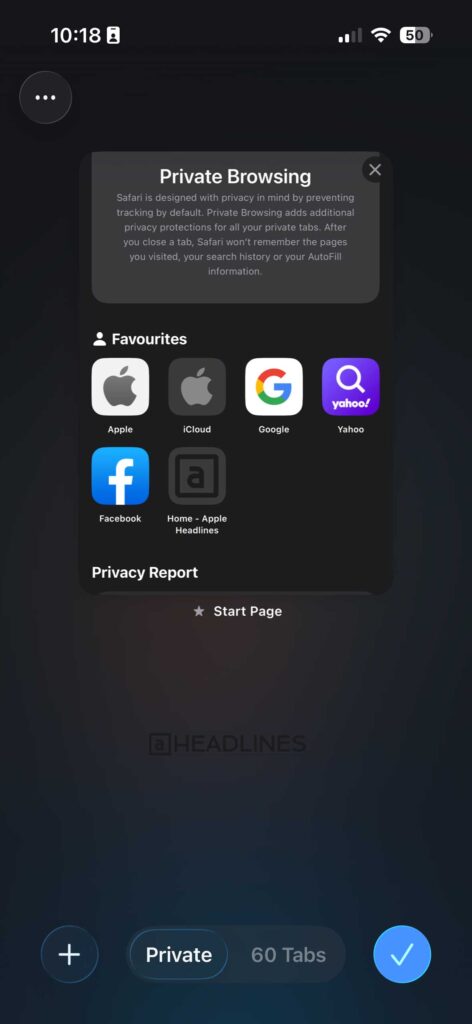
Turn Off Private Browsing Mode
Open Safari.
Tap the tabs icon (two squares) in the bottom-right.
If you see “Private” highlighted, tap it to switch to normal tabs.
History should reappear immediately.
Pro tip: Lock private mode with Face ID via Settings > Safari > Private Browsing Lock for future safety.
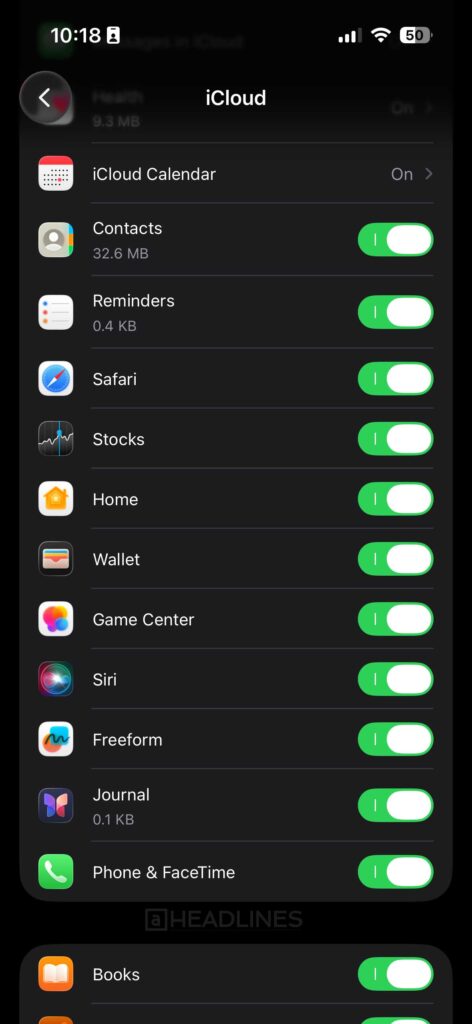
Enable Safari in iCloud Settings
Go to Settings > [Your Name] > iCloud > Show All > Safari, then toggle it on.
This syncs history across devices. Wait 1-2 minutes for refresh—check by opening a new tab and visiting a site.
Check and Disable Screen Time Restrictions
Head to Settings > Screen Time > Content & Privacy Restrictions.
If enabled, enter your passcode, tap Safari, and ensure “Web Content” is set to Unrestricted.
Also, disable “Limit Adult Websites” if it’s blocking history.



Restart Your iPhone and Update iOS
Force restart: For iPhone 16/15, quickly press/release volume up, then volume down, hold side button until Apple logo.
Update via Settings > General > Software Update – iOS 26.1 patches many history bugs.
Clear Safari Cache (Extra Tip)
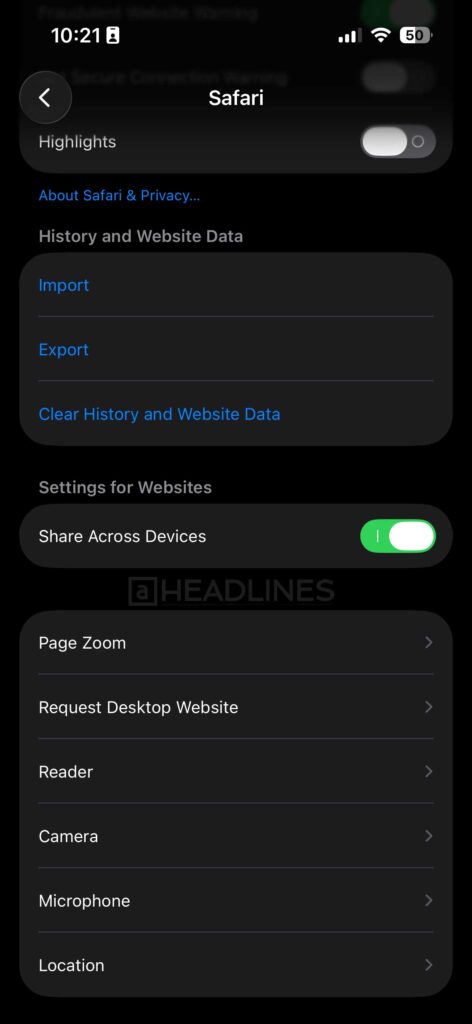
If history still won’t load, go to Settings > Safari > Clear History and Website Data.
This refreshes without deleting everything.
For stubborn cases, toggle Advanced > Website Data off/on.
(Read more > How to Clear Cache on iPhones)
Reset Safari Settings
Settings > Safari > Clear History and Website Data, then reset via Settings > General > Transfer or Reset iPhone > Reset > Reset Location & Privacy (won’t erase data).
Free Up Storage
Settings > General > iPhone Storage – offload unused apps to prevent auto-pruning of history.
Why This Happens on iOS 26 and Prevention
iOS 26’s enhanced privacy features tightened history retention, but these fixes counter it. Enable iCloud backups weekly to safeguard records.
For more, check our Complete Guide to Safari History Management.

Virginia J. Alfonso is a seasoned technology writer with a passion for all things digital. With over a decade of experience covering the latest in tech innovation, gadgets, and software, Virginia brings a unique blend of technical expertise and accessible writing to her work. Her articles focus on making complex tech topics easy to understand for readers of all levels.