

Forgetting to send important messages at the right time is frustrating.
Apple finally solved this problem with latest iOS’s Send Later feature.
Now you can schedule texts to send automatically at any time you choose.
Whether it’s a birthday wish, work reminder, or timely update, scheduled messages keep you organized.
This guide shows you exactly how to schedule a text on iPhone.
You’ll master this feature in minutes and never miss another important message again.
What Is the Send Later Feature in iOS?
Apple introduced Send Later as part of its iOS 18 in September 2024 and iOS 26 update.
This native feature lets you compose and schedule iMessages for future delivery. No third-party apps needed anymore.

The Send Later tool works exclusively with iMessage, not regular SMS texts.
Your message waits in the queue until the scheduled time arrives.
Then it sends automatically, even if your phone is locked.
Key benefits include:
This feature mirrors what Android users have enjoyed for years.
Apple’s implementation is clean, simple, and built right into the Messages app.
Requirements for Scheduling Texts on iPhone
Before you start scheduling messages, check these requirements:
Device Compatibility
- 1. iPhone models: iPhone XR and newer
- 2. iOS version: iOS 18 or later (released September 2024)
- 3. Internet connection: Required for iMessage delivery
Important Limitations
You can only schedule iMessages, not SMS texts.
The recipient must use iMessage (blue bubbles). Green bubble conversations won’t show the Send Later option.
Your iPhone must have battery power when the scheduled time arrives. If your phone is completely dead, the message won’t send until you power it back on.
Messages schedule based on your phone’s current time zone. If you travel, the message sends according to your new location’s time.
How to Schedule a Text on iPhone: Step-by-Step Guide
Follow these simple steps to schedule your first message:
Step 1: Update to latest iOS (18 or 26)
Step 2: Open Messages App
Step 3: Compose Your Message
Type your message in the text field at the bottom. You can include:
Review your message carefully before scheduling. You can edit it later, but it’s easier to get it right now.
Step 4: Access Send Later Option
Don’t tap the send button yet! Instead:

If you don’t see this option, verify you’re using iMessage (blue conversation) and have iOS 18 and higher version installed.
Step 5: Choose Your Send Time
A date and time picker appears. You have two options:
Quick Selection:
- Today (later in the day)
- Tomorrow morning
- Tomorrow evening
Custom Time:
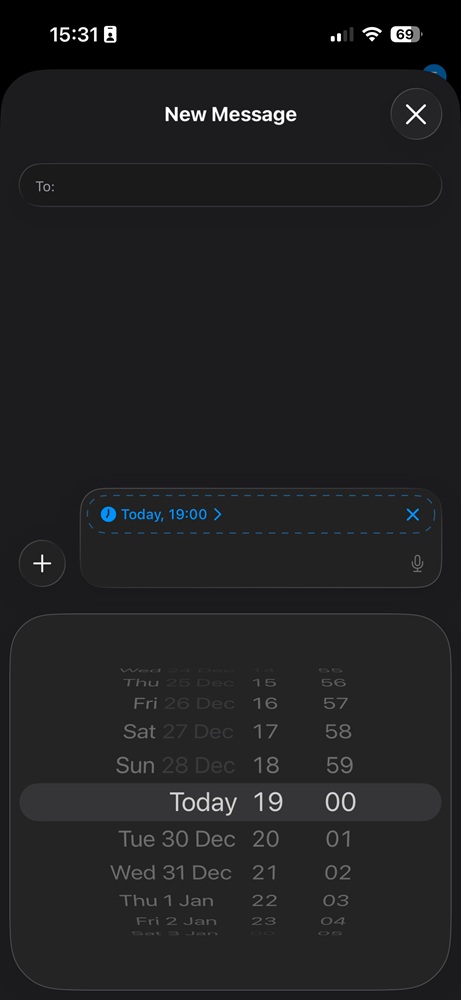
The message now shows a small clock icon indicating it’s scheduled.
Step 6: Confirm and Wait
Your scheduled message appears in the conversation with:
The message will send automatically at the scheduled time. Your job is done!
YouTube Video >>
Managing and Editing Scheduled Messages
Life changes, and sometimes your scheduled messages need updating too.
How to Edit a Scheduled Message
You can change both the message content and the send time.
How to Reschedule a Message
The message updates immediately with the new schedule.
How to Cancel a Scheduled Message
Sometimes you need to stop a message from sending:
Deleted scheduled messages don’t save as drafts. You’ll need to rewrite them if you change your mind.
Viewing All Scheduled Messages
iOS includes a dedicated section for scheduled messages:
This overview helps you manage multiple scheduled texts across different conversations.
Advanced Tips for Using Send Later
Schedule Messages Across Time Zones
Traveling internationally? Your scheduled messages adjust to your current time zone automatically.
Example: You schedule a message for 9 AM while in New York. You fly to London. The message sends at 9 AM London time, not New York time.
Pro tip: Set messages based on the recipient’s time zone, not yours. If you want your friend in California to receive a message at 8 AM their time, calculate the time difference first.
Batch Schedule Multiple Messages
Planning ahead saves time. Schedule several messages at once:
This approach works great for:
Use Send Later for Professional Communication
Send Later helps maintain professional boundaries:
Your contacts won’t know the message was scheduled. It appears as a normal message sent in real-time.
Combine with Focus Modes
iOS’s Focus modes pair perfectly with Send Later:
This combination gives you control over your digital life.
Troubleshooting Common Issues
“Send Later” Option Not Appearing
Check these solutions:
Scheduled Message Didn’t Send
Possible reasons:
Fix: Turn on your iPhone and connect to WiFi or cellular data. The message should send within a few minutes.
Can’t Schedule SMS (Green Bubble) Messages
This is normal. Send Later only works with iMessage conversations. SMS texts through cellular networks don’t support scheduling.
Workaround: Ask the recipient to enable iMessage on their device. If they use Android, consider using WhatsApp or another messaging app with scheduling features.
Message Sent at Wrong Time
If messages send at unexpected times:
Comparing Send Later to Third-Party Apps
Before send later, iPhone users relied on third-party scheduling apps. How does Apple’s native solution compare?
Native Send Later Advantages
Third-Party App Advantages
For most iPhone users, the native Send Later feature provides everything needed. Power users might still prefer specialized apps for specific features.
Real-World Use Cases for Scheduled Texts
Personal Life
Birthday wishes: Schedule messages for midnight on friends’ birthdays. They’ll wake up to your greeting without you staying up late.
Long-distance relationships: Send “good morning” messages timed to your partner’s wake-up time, even when you’re in different time zones.
Medication reminders: Schedule daily check-in messages to elderly parents or family members taking medication.
Professional Communication
Client follow-ups: Schedule a follow-up message three days after a meeting. You won’t forget, and clients appreciate your consistency.
Team updates: Draft weekend insights and schedule them for Monday morning. Your team receives updates during work hours.
Interview thank-yous: Send a thank-you message timed for later in the day. It shows professionalism without seeming too eager.
Social Coordination
Event reminders: Schedule a reminder message one day before group events. Friends appreciate the heads-up.
Travel updates: Pre-schedule arrival messages to send when your plane lands. Family knows you’re safe even if you’re busy.
Privacy and Security Considerations
Is Send Later Private?
Yes. Scheduled messages use the same end-to-end encryption as regular iMessages. Apple can’t read your scheduled message content.
Data Storage
Scheduled messages store locally on your iPhone until they send. They don’t upload to external servers or third-party apps.
iCloud Backup
If you enable Messages in iCloud, scheduled messages sync across your Apple devices. This backup is encrypted with your Apple ID credentials.
Best Practices
- Don’t schedule sensitive information far in advance
- Review scheduled messages before they send
- Delete unnecessary scheduled messages
- Use Face ID or Touch ID to secure your device
Future Updates and iOS Development
Apple continues improving the Send Later feature with each iOS update. While we’re currently on iOS 18 and iOS 26, future versions might include:
- SMS scheduling support
- Recurring message options
- Message templates
- Group message scheduling
- Cross-device scheduling management
Keep your iPhone updated to access the latest features as Apple releases them.
Key Takeaways
- Send Later is a free iOS feature that schedules iMessages for automatic delivery
- Only works with iMessage (blue bubbles), not SMS texts (green bubbles)
- Simple process: Long-press the send button, choose “Send Later,” set your time
- Fully editable: Change message content, reschedule, or cancel anytime
- Privacy protected: Messages stay encrypted within Apple’s ecosystem
- Time zone aware: Scheduled messages adjust to your current location
- Professional tool: Helps maintain boundaries and consistent communication
- No internet needed: Message queues locally and sends when connection returns
Frequently Asked Questions
Q: Can I schedule texts to Android users?
A: No. Send Later only works with iMessage (blue bubbles). Messages to Android users appear as SMS (green bubbles) and cannot be scheduled using the native iOS feature.
Q: What happens if my phone is off when the scheduled time arrives?
A: The message remains queued and sends automatically when you turn on your iPhone and connect to the internet. It may arrive a few minutes late depending on when you power up.
Q: Can I schedule the same message to multiple people?
A: Not directly. You must schedule the message separately in each conversation. Copy your message text to save time when composing multiple scheduled messages.
Q: Will the recipient know my message was scheduled?
A: No. Scheduled messages appear exactly like regular messages to recipients. There’s no indication the message was pre-scheduled rather than sent in real-time.
Q: How far in advance can I schedule a message?
A: iOS doesn’t specify a maximum time limit. You can schedule messages weeks or months in advance. However, reviewing scheduled messages periodically is recommended for accuracy.
Disclaimer
This guide is accurate as on iOS 18 and iOS 26 features. Apple regularly updates iOS with new features and changes. Some functionality may differ in future iOS versions. Always verify information with Apple’s official support documentation for your specific iOS version. The Send Later feature requires iOS 18 or later and only works with iMessage. Results may vary based on network conditions, device settings, and recipient configurations. This article provides general guidance and does not replace official Apple support resources.
Ready to Master Your iPhone Messaging?
Start scheduling your first text message today using iOS’s Send Later feature. You’ll wonder how you ever managed without it. Never miss another important message or birthday wish again.
Take action now: Open your Messages app, find a conversation, and practice scheduling your first message. The more you use this feature, the more natural it becomes. Your friends, family, and colleagues will appreciate your perfectly timed communication.
Share this guide with other iPhone users who could benefit from scheduled messaging. Leave a comment below about how you use Send Later in your daily life!

Virginia J. Alfonso is a seasoned technology writer with a passion for all things digital. With over a decade of experience covering the latest in tech innovation, gadgets, and software, Virginia brings a unique blend of technical expertise and accessible writing to her work. Her articles focus on making complex tech topics easy to understand for readers of all levels.