




Your Safari browser stores every website you visit.
This history helps you find pages you viewed before.
Learning how to see history on Safari iOS 26 is essential for every Apple device owner.
Whether you need to revisit a recipe or find a research article, your browsing history is a powerful tool.
This guide shows you exactly how to access and manage Safari history on your iPhone or iPad running iOS 26.
Short Story on Safari History
What Is Safari History?
Safari history is a record of websites you visit on your device. iOS 26 automatically saves this information.
The browser tracks dates, times, and page titles.
This feature makes it easy to return to websites without bookmarking them. Your history syncs across all Apple devices using iCloud.
Understanding how to see history on Safari iOS 26 gives you control over your browsing data.


How to View Your Safari History on iOS 26
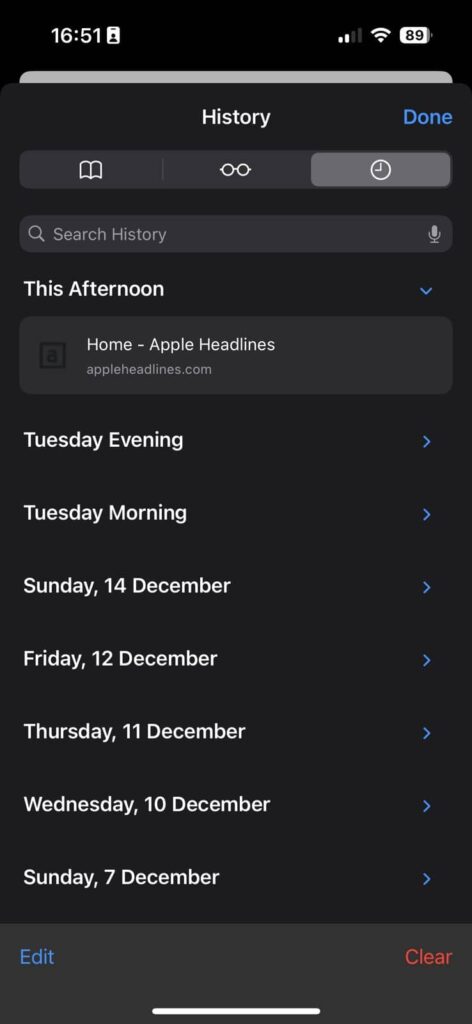
Method 1: Using the History Button
The fastest way to see history on Safari iOS 26 is through the built-in button. Follow these simple steps:
This method works on all iOS 26 devices. The history displays websites from today, yesterday, and earlier dates. You can scroll back weeks or even months.
Method 2: Using the Search Bar
iOS 26 offers a quick search feature for your Safari history:
This method saves time when you know what you’re looking for. The search function scans your entire browsing history. It finds matches even if you visited the site weeks ago.
Remove Your Safari History on iOS 26
Delete Individual Items
Sometimes you need to remove specific websites from your history. iOS 26 makes this simple:
This removes only that specific page from your history. Other entries remain intact. You maintain control over what stays in your browsing record.
Clear All History at Once
To completely clear your Safari history on iOS 26:
This action removes all browsing history, cookies, and cached data. The process cannot be undone. Your Safari will start fresh with no stored history.
Advanced Tips for Safari History on iOS 26
Use Private Browsing Mode
Private browsing prevents Safari from saving your history.
To activate this feature, tap the tabs icon in Safari. Select Private from the menu.
All websites you visit in this mode won’t appear in your history.
This protects your privacy when browsing sensitive content. Remember that private mode doesn’t make you invisible online.
Sync History Across Devices
iOS 26 syncs your Safari history through iCloud automatically.
This means you can see history on Safari iOS 26 from any Apple device.
Open Settings and tap your name at the top. Select iCloud and ensure Safari is enabled.
Your browsing history will sync across your iPhone, iPad, and Mac.
This creates a seamless experience across all your devices.
How Long Does Safari Keep History?
iOS 26 stores your Safari history for one year by default.
After 12 months, old entries automatically delete.
You can manually clear history anytime using the methods above.
Regular clearing helps maintain device performance. It also protects your privacy by removing outdated browsing data.
Troubleshooting Safari History Issues
History Not Showing Up
If you cannot see history on Safari iOS 26, try these solutions:
These steps resolve most common history display problems. Contact Apple Support if issues persist after trying all solutions.
Privacy and Security Considerations
Understanding how to see history on Safari iOS 26 includes knowing privacy implications.
Your browsing history contains personal information about your interests and activities.
Anyone with access to your device can view this data.
Consider clearing history regularly if you share your device. Use Screen Time restrictions to prevent others from accessing Safari settings.
Enable Face ID or Touch ID to protect your device.
These measures keep your browsing history secure and private.
Frequently Asked Questions
- Can I recover deleted Safari history on iOS 26?
No, once you clear Safari history on iOS 26, it cannot be recovered. The deletion is permanent.
This applies to both individual entries and complete history clearing. Always review your history before deleting it.
- Does Private Browsing mode hide my history completely?
Private mode prevents Safari from saving history on your device.
It doesn’t make you anonymous online. Your internet provider, employer, or websites can still track your activity. Use Private Browsing for local privacy only.
- How do I stop Safari from syncing history to other devices?
Open Settings and tap your Apple ID name. Select iCloud and turn off Safari toggle.
This stops history syncing across your devices. Each device will maintain its own separate browsing history.
- Can other people see my Safari history on shared devices?
Yes, anyone who accesses your device can see your Safari history. Protect your privacy by clearing history regularly.
Enable device passcode protection. Consider creating separate user profiles for shared family devices.
- Why can’t I find older websites in my history?
iOS 26 automatically removes history older than one year. If you cleared your history recently, older entries are gone permanently. Check if iCloud sync is enabled to access history from other devices.
Take Control of Your Safari History Today
Now you know exactly how to see history on Safari iOS 26. These skills help you navigate efficiently and protect your privacy.
Practice accessing your history using both the book icon and search bar methods. Decide which approach works best for your daily browsing habits.
Remember to clear sensitive history when needed.
Take advantage of Private Browsing for confidential web activities. Your Safari history is a valuable tool when used wisely.
Ready to explore more iOS 26 features? Check your Safari history right now and see what websites you can rediscover. Share this guide with other Apple users who need help managing their browsing data.
Disclaimer
This article provides general information about Safari features on iOS 26. While we strive for accuracy, Apple may update features and settings. Screen layouts and menu options might vary slightly based on your specific device model. Always back up your data before making significant changes. The methods described work on standard iOS 26 installations. Customized or jailbroken devices may experience different results. For device-specific issues, contact Apple Support directly. This guide does not constitute professional technical advice.

Virginia J. Alfonso is a seasoned technology writer with a passion for all things digital. With over a decade of experience covering the latest in tech innovation, gadgets, and software, Virginia brings a unique blend of technical expertise and accessible writing to her work. Her articles focus on making complex tech topics easy to understand for readers of all levels.