





Safari is the default browser on iPhone.
Apple now allows more visual customization than ever.
Many users want to change Safari background on iPhone for a cleaner look.
Others prefer dark themes, custom images, or a white background.
With iOS 26, Safari customization feels easier and more flexible.
This guide explains every option step by step.
If you use an iPhone, iPad, or Mac, this article will help you personalize Safari quickly.
Short Story
Understanding Safari’s Background Options on iPhone
Safari’s “background” actually refers to different visual elements. Let’s break them down:
- Start page background – The screen you see when opening a new tab
- Browser theme – Light or dark mode affecting Safari’s overall appearance
- Tab bar color – The navigation bar at the top or bottom
Each element can be customized differently. Understanding these distinctions helps you achieve your desired look.
Why Change Safari Background on iPhone?
Customization improves comfort and usability.
A bright background helps during the day.
A darker one feels easier on the eyes at night.
Changing Safari’s look also:
- Reduces eye strain
- Matches your wallpaper
- Improves focus while browsing
Think of it like repainting a room.
Same space, better mood.
How to Change Safari Background on iPhone (iOS 26)
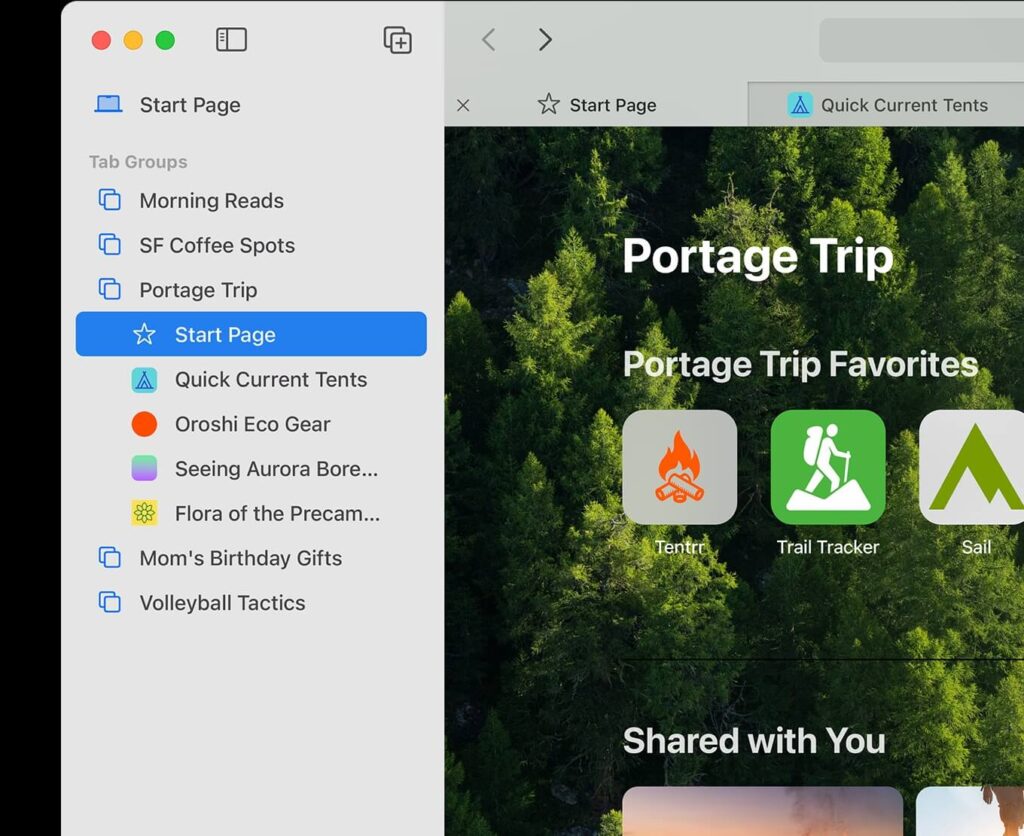
You can change Safari background on iPhone iOS 26 directly from Safari.
Step-by-Step Guide
- Open Safari on your iPhone.
- Tap the Tabs button at the bottom.
- Tap Edit on the Start Page.
- Enable Background Image.
- Choose an Apple image or your photo.
Your Safari background updates instantly.



How to Change Safari Background to White
Some users prefer a clean, minimal look.
You can change Safari background to white easily.
Make Safari White Again
- Open Safari Start Page.
- Tap Edit.
- Turn off Background Image.
- Use Light Mode in Settings.
Safari returns to its default white background.
How to Change Safari Bar to Bottom on iPhone
Apple allows the address bar at the bottom.
This helps with one-handed use.
Move Safari Bar to Bottom
- Open Settings.
- Tap Safari.
- Select Tab Bar.
- Choose Bottom position.
This option pairs well with background customization.
Change Safari Background on Mac (Quick Overview)
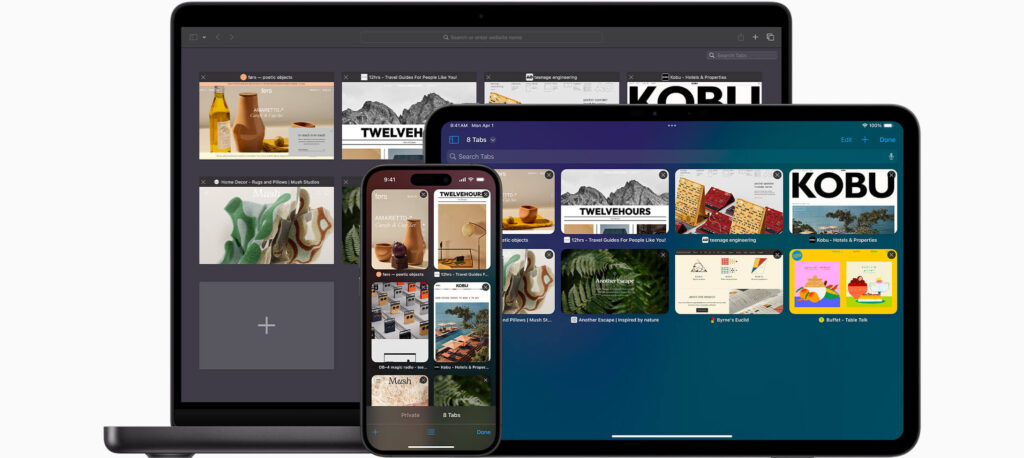
If you use a MacBook, customization is similar.
You can change Safari background Mac settings easily.
Steps on macOS
- Open Safari.
- Click Start Page.
- Select Background Image.
- Choose a preset or upload your image.
Your Safari theme syncs across Apple devices.
Tips for Choosing the Best Safari Background
Not all images work well.
Choose backgrounds that improve readability.
Best Background Practices
- Use soft colors
- Avoid busy patterns
- Pick high-resolution images
- Test in both light and dark mode
A simple background keeps text easy to read.
Common Problems and Fixes
Sometimes Safari changes do not apply.
Here’s how to fix common issues.
Troubleshooting Tips
- Restart Safari
- Restart your iPhone
- Update to latest iOS version
- Turn off Focus modes temporarily
These steps fix most background issues.
Why Safari Customization Matters in iOS 26
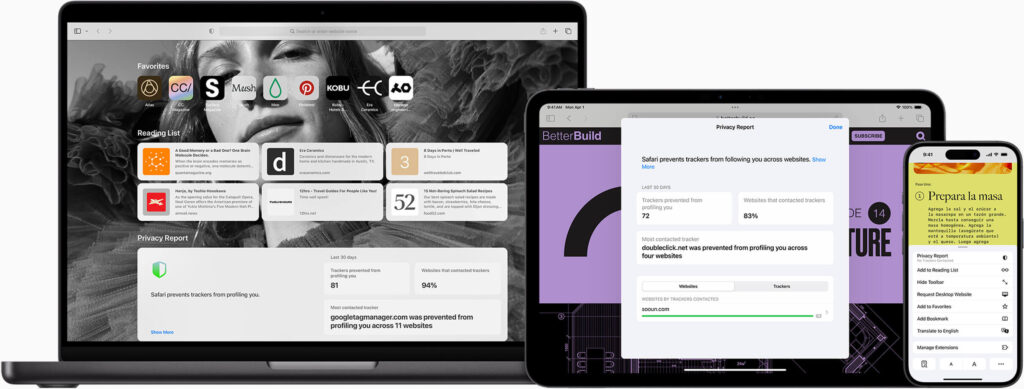
Apple focuses more on user control.
Safari now feels personal and flexible.
iOS 26 improves:
- Visual comfort
- Accessibility
- One-handed navigation
These changes improve daily browsing.
Tips for Better Safari Customization
Enable Reader Mode for cleaner backgrounds:
- Tap the “AA” icon in the address bar
- Select “Show Reader View“
- Enjoy distraction-free reading with neutral backgrounds
Adjust text size and colors:
- Go to Settings > Safari > Advanced
- Enable Website Settings for per-site customization
Use Safari extensions:
- Download extensions from the App Store
- Some offer additional customization features
FAQs
1. Can I use my own photo as Safari background?
Yes. Safari allows personal images from Photos.
2. Does Safari background affect performance?
No. It only changes appearance.
3. Can I change Safari background on older iOS?
Options are limited on older versions.
4. Why does my Safari background reset?
This can happen after system updates.
5. Can I sync Safari background across devices?
Yes, with the same Apple ID.
Disclaimer
This guide is for informational purposes only.
Features may change with future iOS updates.
Always check Apple’s official documentation for updates.
Ready to personalize your browser?
Change Safari background on iPhone today and enjoy a cleaner browsing experience.
Explore iOS 26 settings now and make Safari truly yours